The trust layer between people and AI for financial documents.
MIDMEN sits between your Excel model and the Word reports and PowerPoint decks made from it, whether you write them or Claude does.
- Change the model once. Every document follows.Publish a new version in Excel and the numbers in your Word reports and PowerPoint decks update on their own. A sentence that is no longer true turns red for you to fix. Try it
- No more “trust me bro”.Every number has a source you can click: its Excel cell, its formula, the PDF page or web link it came from. MIDMEN finds and clips the source itself. See it
| Line | Cell | FY26Q1 | FY26Q2 |
|---|---|---|---|
| Segment A volume (units)Inputs!F5 | Inputs!F5 | 1,20,000 | 1,28,000 |
| Revenue from operationsModel!F12 | Model!F12 | ₹1,230 Cr | ₹1,242 Cr |
| EBITDAModel!F20 | Model!F20 | ₹261 Cr | ₹242 Cr |
Revenue grew 1.0% quarter on quarter to ₹1,242 Cr. Rule: revenue growth above 0. True at version 1.
Revenue fell 4.0% quarter on quarter to ₹1,180 Cr.The numbers stay live; only the words are new.
EBITDA margin was 19.5%, a healthy level for the business. Rule: EBITDA margin above 15%.
EBITDA for the quarter was ₹242 Cr, against ₹261 Cr in the previous quarter.
Where we stand
- Revenue: ₹1,242 Cr against ₹1,230 Cr last quarter
- EBITDA: ₹242 Cr
Version 1 is published. Every number in the report and the deck comes from it, and every sentence is true.
Change the model once. Every document follows.
The model changes the night before the meeting. Every report and deck made from it updates on the go, and you only read what is no longer true.
Publish a new version in Excel. MIDMEN keeps each version of the model's numbers: what they were, which cell they came from, and when.
Word and PowerPoint update themselves. Every figure in a MIDMEN document is a live tag filled from a published version, so the numbers change with the model. Nothing is retyped.
Words are checked too. Each sentence carries a rule. “Revenue grew …” needs growth above zero; when the new numbers break the rule, the sentence turns red.
Fix, then Approve. Fix proposes new wording around the same live numbers. You insert it as a tracked change and approve it. A person signs off every word.
Explain why. In Excel, MIDMEN reruns the model with each changed input put back and names what moved each number. It is arithmetic in Excel, not an AI's guess.

- Word, after version 2: the numbers already show 4.0% and ₹1,180 Cr; the sentence is marked no longer true.
- A sentence whose rule still holds stays true and needs nothing.

- Excel, Changes: Explain why reruns the model and names the input behind the change.
- What moved between version 1 and version 2, with its size: revenue −₹62 Cr, growth −504 bps.
Real MIDMEN pane, fictional Acme workspace.
No more “trust me bro”.
A number in a report is only as good as where it came from. In MIDMEN you can click it and see.
The citing is not manual. Upload the annual report PDF in the pane, or let Claude send it, and the rest is automatic: MIDMEN finds each printed figure on its page, checks that it ties out to the cell, and clips a picture of that line with the figure marked. Nobody crops a screenshot or copies a figure by hand.
Web pages work the same way: MIDMEN opens the link itself, finds the figure and keeps the link, when it read the page and the words around the figure. Every input can be traced to the PDF page or web link it came from.
It also tells you what is not backed: coverage counts the typed inputs behind your published numbers and how many have a source. Highlight cells without a source selects them in Excel so you can fill the gaps. It never writes into your workbook and never blocks Publish.
Try it: click a number in the model.
| Acme model, FY26Q2 | Cell | Value |
|---|---|---|
| Segment A volume (units)Inputs!F5 | Inputs!F5 | |
| Materials cost (% of revenue)Inputs!F13 | Inputs!F13 | |
| Segment A revenueModel!F8 | Model!F8 | |
| Revenue from operationsModel!F12 | Model!F12 | |
| EBITDAModel!F20 | Model!F20 |
Revenue from operations, FY26Q2: ₹1,180 Cr
Model!F12 = SUM(F8:F11), published in version 2
Acme Industries Q2 FY26 results (fictional), page 2, printed 1,180.4

An example on the fictional Acme model. The PDF pictures are drawn from the fictional Acme results PDF, the way the pane draws them.

- Always in view: how many inputs have a source.
- Click any cell: what the number is, its Excel cell and formula, and the version it was published in.
- The PDF page it came from, with a picture of the printed line. Whole page and Full screen show the page around it.

- A web page as the source: the figure as printed there, and whether it ties out to the cell.
- The link, when MIDMEN read the page, and the words around the figure. MIDMEN opens the link itself; it does not take the AI’s word for what the page says.

- Coverage: 16 of 22 inputs have a source, 6 do not.
- Highlight cells without a source selects them in Excel. Nothing is coloured or written into the workbook.
Real MIDMEN pane, fictional Acme workspace.
Let Claude build it. MIDMEN checks it.
Add one link in Claude. Then ask for a model from annual-report PDFs and a report on it.
Claude does the work through MIDMEN: it builds the Excel model, cites every number it takes from the PDFs or from web pages, publishes it, then writes a Word report whose every sentence is registered, checked against the published numbers and stamped.
It all runs on your own Claude plan. MIDMEN's own AI is not used and no invite code is needed.
Works in claude.ai on the web and the Claude desktop app. Free accounts can add one custom connector. Full steps are in Get started.
-
Add MIDMEN as a connector
Customize → Connectors → + Add → Add custom connector. Name it MIDMEN and paste:
https://haemyptqidpvsyjbdeff.supabase.co/functions/v1/mcp -
Ask, with the PDFs attached
Use MIDMEN to build a financial model for [company] from the annual report PDFs I've attached: history, a forecast and a DCF. Cite every number you take from the PDFs or from web pages (with the link), then publish it. Call the workspace "[company] FY26".
-
Claude calls MIDMEN's tools
create_workspacea workspace for the companyupload_sourcesends the PDF to MIDMEN, which reads its pagessubmit_modelMIDMEN reads the calculated workbook, checks it, and finds each cited figure on its PDF page or web pagecitemore citations, to a PDF page or a web link: MIDMEN opens the link itself and keeps the link and the words around the figurepublishversion 1 of the numbersregister_documentevery sentence of the Word report, with its live numbersverify_documentthe file is checked against the published versionstamp_documentthe checked file is stamped: version, fingerprint, who
-
You get a checked, stamped report
The copy Claude gives you works with the MIDMEN pane in Word, so it can be refreshed, fixed and traced later. A big model takes Claude 15–25 minutes.
What else is true today.
- The AI never writes a number.
Excel is the only calculator. When the AI drafts or fixes a sentence, it picks which published number goes where and writes the words around it; every figure is a tag filled from a published version. A typed-in figure in a report is flagged.
- Click any number.
In Excel, Word or PowerPoint, click a figure to see its Excel cell, its formula, its source and the version it was published in. In Claude, ask where a number comes from and it answers with the version and the cell.
- Explain why, without guessing.
When a new version moves a number, Excel reruns the model with each changed input put back and names the driver, with its effect on each output. No AI is involved.
- Stamps.
A Word or PowerPoint file checked against version N gets a stamp: the version, the file's fingerprint (SHA-256) and who stamped it. Any edit changes the fingerprint, so a stamp only ever vouches for the exact file that was checked.
- Work on it as a team.
A workspace owner adds people by email in ⋯ → People (in Excel also under the Setup gear), or asks Claude: “add priya@firm.com to the Acme workspace as a viewer”. People without a MIDMEN account can be invited too: the workspace appears the first time they sign in with that email.
Each person gets a role. Owner manages people and the workspace's AI key. Editor publishes new versions, fixes and approves sentences, and stamps documents. Viewer sees the numbers, documents, sources and changes, and changes nothing.
- Valuation models as they are.
DCFs with actuals next to forecasts, LBO and project-finance models with intended circular references, comps tables, sensitivity grids and Monte Carlo runs publish without being restructured.
- Bring your own AI key.
A workspace owner can add their own Anthropic or OpenAI-compatible key in Setup → AI. It is stored encrypted, never shown again, and a failing key stops with a clear message instead of quietly switching to another.
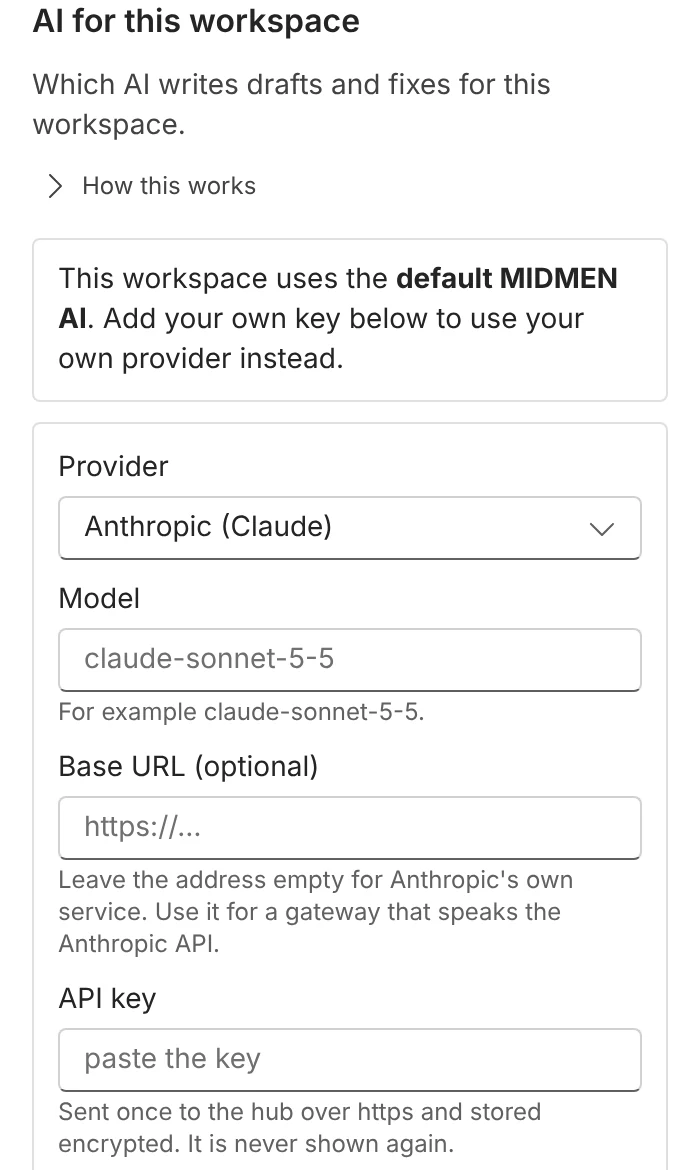
Excel: Setup → AI.

Get started.
During the pilot there are two ways to use MIDMEN. Both start with the same email sign-in, and every new account gets the Acme example as its own sample workspace. If a colleague invited you to a workspace, sign in with the email they invited and it is already there.
From Claude chat
claude.ai on the web or the Claude desktop app. Free accounts can add one custom connector.
-
Add MIDMEN as a connector
In Claude: Customize → Connectors → + Add → Add custom connector. Name it MIDMEN and paste this address:
https://haemyptqidpvsyjbdeff.supabase.co/functions/v1/mcpClick Add, then Connect.
-
Sign in with the emailed code
A MIDMEN sign-in page opens. Enter your email and type the 8-digit code that arrives from login@auth.midmen.in. A new email creates your pilot account and its sample workspace (the first time takes a few seconds).
-
Tick “Let Claude change your workspaces”, then Allow
The box is off unless you tick it. Tick it if Claude should build things in MIDMEN: make a workspace, publish a model from your PDFs, record where each number comes from, and register Word or PowerPoint files. Leave it off if Claude should only read and explain published numbers.
-
Let Claude read your files and reach MIDMEN
In Claude: Settings → Capabilities, turn on Code execution and file creation and Allow network egress. If you see a list of allowed domains, add
haemyptqidpvsyjbdeff.supabase.co(or choose all domains). This is how Claude sends your PDFs to MIDMEN.If you can't change this setting, Claude gives you a link to a MIDMEN page where you drop the PDF yourself.
-
Ask your first question
In a new chat, try your sample workspace:
Using MIDMEN, what changed in Acme Industries (sample) between version 1 and version 2, and why? Quote the Excel cells.
Then the real thing, with a company's annual report PDFs attached:
Use MIDMEN to build a financial model for [company] from the annual report PDFs I've attached: history, a forecast and a DCF. Cite every number you take from the PDFs or from web pages (with the link), then publish it. Call the workspace "[company] FY26".
Use MIDMEN to write me a short Word report (about two pages) on the [company] FY26 workspace. Verify it and stamp it, and give me the copy that works with the MIDMEN pane.
A big model takes Claude 15–25 minutes. Claude asks before each MIDMEN step unless you allow it for the chat.
In Excel, Word and PowerPoint
Windows, desktop Office from Microsoft 365, Office 2021 or Office 2024. Mac is not part of the pilot yet.
-
Download and run the installer
Download MIDMEN for Office (.zip, 3 KB)
Open the zip and double-click Install MIDMEN.cmd. Windows may ask “Do you want to run this file?” or show “Windows protected your PC”: click Run (or More info → Run anyway). The script is short and readable in Notepad. It adds MIDMEN for your Windows user only: one file and one registry value, no admin rights.
-
Restart Office and open MIDMEN
Close Excel, Word and PowerPoint completely, open one again, and click MIDMEN on the Home tab (at the right). Sign in with your email and the 8-digit code.
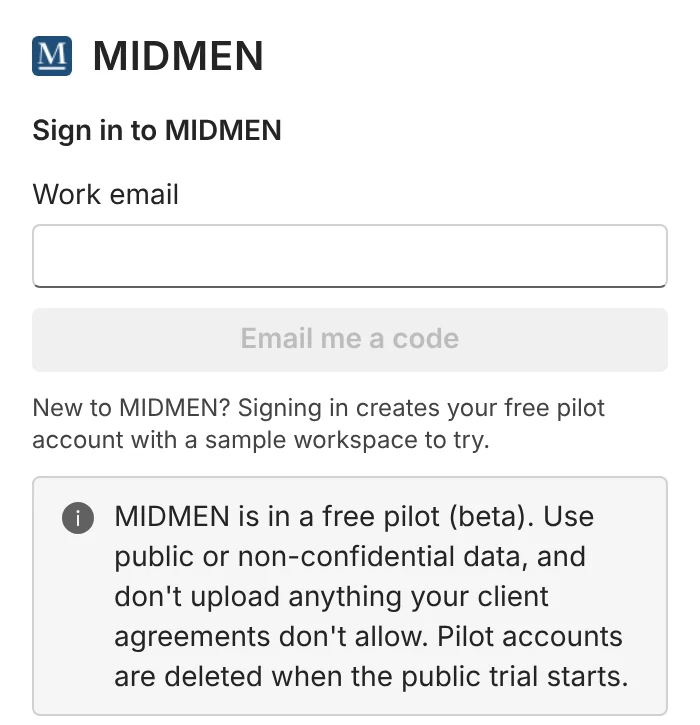
Sign in with an emailed code. -
Try the sample
In the pane: Download sample files (Excel: on the first screen or Setup → Sample files; Word and PowerPoint: ⋯ → Sample files). Open them from your Downloads folder.
- Excel: the model is already connected. Open Changes → Explain why to see which input moved the numbers.
- Word and PowerPoint: the pane brings the file up to version 2 and one sentence turns red. Try Fix → Insert → Approve.
- Click any number to see its Excel cell, formula and source page.
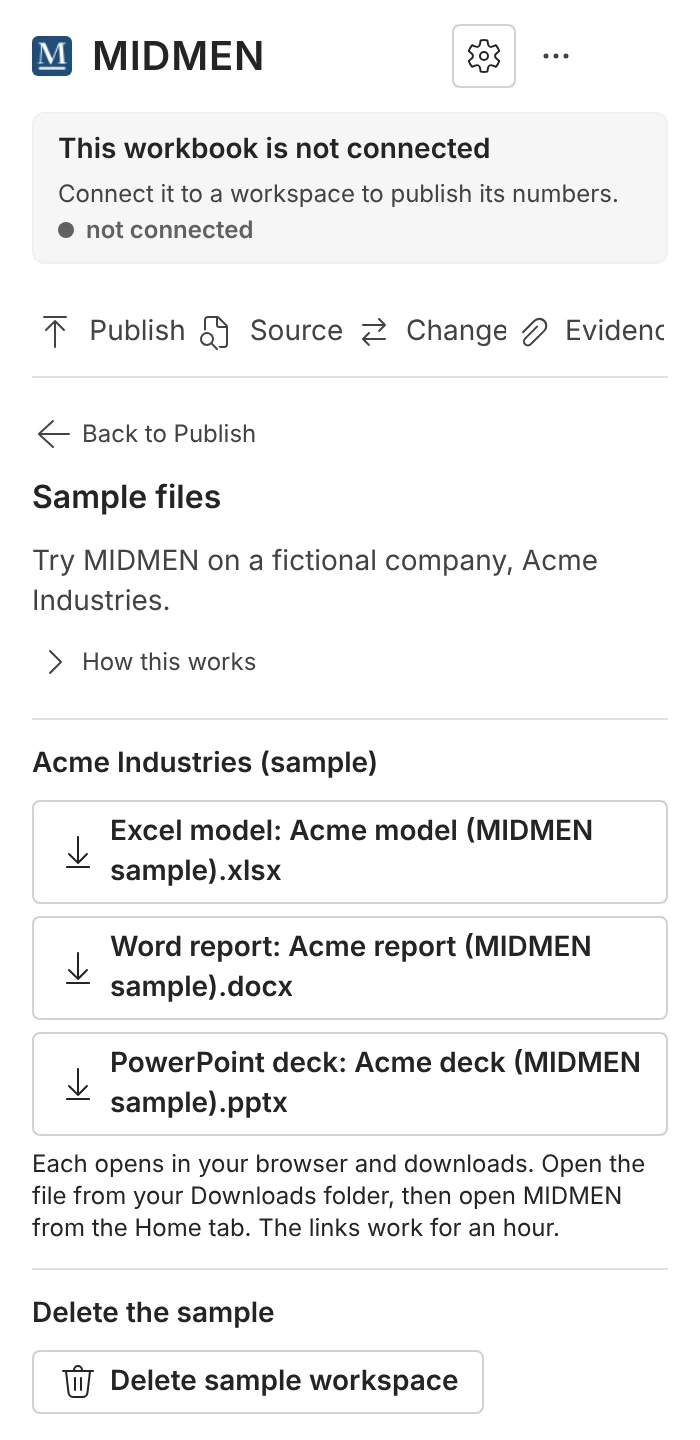
Download the sample files. To remove MIDMEN, run Uninstall MIDMEN.cmd from the same zip.


Invite codes.
Draft, Fix and Connect in the Office pane use MIDMEN's own AI. During the pilot that needs an invite code (it looks like MM-XXXX-XXXX-XXXX). There are 20 codes in this pilot: one code per person, good for 50 AI actions, and each click on Draft, Fix or Connect is one action.
To use yours: in Excel, Setup (gear) → Invite code; in Word or PowerPoint, ⋯ → Invite code. Paste the code and click Use this code.
Without a code you can still publish, trace numbers, keep documents true, and use everything from Claude chat, which runs on your own Claude plan and never needs a code. A workspace owner can also add their own AI key in Setup → AI. For a code, comment “MIDMEN” on my LinkedIn post or message me there.
Feedback.
Something broke? In the pane, open ⋯ → Report a problem. Type what happened, or record a voice note of up to three minutes if that's easier, and paste a screenshot with Ctrl + V. The report goes straight to me with the app, Office version and the pane's recent errors, so I can find the problem without asking you. Nothing from your workbook, document or deck is sent unless you type it, add it in a screenshot or say it in the recording.
What confused you, or what you'd pay for: write to feedback@midmen.in or reply to my LinkedIn post.
Your data in the pilot.
Use public or non-confidential data: annual reports, the sample, your own practice models. Don't upload anything your client agreements don't allow.
- Where it is stored
- Your workspaces, files and sign-in on MIDMEN's development hub (Supabase, Singapore).
- Who runs the AI
- From Claude chat: your own Claude account. In the Office pane (Draft, Fix, Connect): Anthropic's API, outside India; Anthropic does not train on it and deletes it within 30 days.
- Emails
- Sent by Resend: sign-in codes from login@auth.midmen.in, workspace invitations from invites@auth.midmen.in.
- Problem reports
- Kept on the same development hub; only I read them.
- When the pilot ends
- Pilot accounts and their data are deleted when the public trial starts, and the connector address changes then (you'll add the new one).